Showing posts with label obdemoto 900pro. Show all posts

Wednesday, 17 June 2026

How to Connect WiFi and Upgrade Your OBDEMOTO 900PRO

Keeping your diagnostic scanner up to date ensures the latest vehicle coverage, bug fixes, and improved performance. This guide explains two methods to upgrade your OBDEMOTO 900PRO Key Programmer software: via SD Card and via WiFi.


Method 1: Upgrade via SD Card


1. Obtain the corresponding upgrade file according to the serial number of the diagnostic scanner, and save it to your local PC.

2. Unzip the upgrade package to a new folder.

3. Connect the computer through an SD card with an SD card reader, click My Computer, find the U disk (SD card), and click Enter.

how-to-connect-wifi-and-upgrade-your-obdemoto-900pro-1

4. Copy the contents of the unzipped folder to the U disk (SD card).

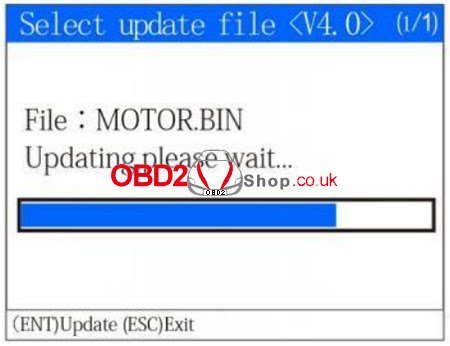
5. Insert the SD card back into the diagnostic scanner and power on.

6. The following screen will be displayed after the diagnostic scanner is started:


how-to-connect-wifi-and-upgrade-your-obdemoto-900pro-2

Press the OK button to start the upgrade process:


how-to-connect-wifi-and-upgrade-your-obdemoto-900pro-3

Once the upgrade process is complete, the diagnostic scanner will start normally. If the upgrade process failed, repeat the preceding steps.


Note:

1. The format of the SD card used by the diagnostic scanner is FAT32. Please pay attention when formatting the SD card; the diagnostic scanner will not work normally.

2. Only when the serial number of the diagnostic scanner is the same as the serial number of the software can it be upgraded. If the serial numbers of the diagnostic scanner and the software are different, the software will not work normally or be able to upgrade the diagnostic scanner.


Method 2: Upgrade via WiFi


1. The diagnostic scanner is connected to the external power supply. After the diagnostic scanner is powered on, click the "One-click Upgrade" icon on the home screen.


how-to-connect-wifi-and-upgrade-your-obdemoto-900pro-4

2. Enter the one-click upgrade page.


how-to-connect-wifi-and-upgrade-your-obdemoto-900pro-5

3. Select "Wireless Network Settings" to enter, and select the "Turn On Wireless Network" option. Select "OK" to enter.


how-to-connect-wifi-and-upgrade-your-obdemoto-900pro-6

4. After finding your network option, you can select "Yes", but you need to change the connection password through the hotspot on your personal phone to use the default password [shortcut for WiFi link]; If you select "No", you will need to enter the WIFI connection password by selecting "No".


how-to-connect-wifi-and-upgrade-your-obdemoto-900pro-7

5. Press up "▲", down "▼", left "◄" and right "►" arrow button to select the alphabet character and Arabic numerals corresponding to your WIFI password. The F1 button is for confirming the selection. Enter the complete password and press the "OK" button. The diagnostic scanner will indicate that the connection is successful.

how-to-connect-wifi-and-upgrade-your-obdemoto-900pro-8

6. After the diagnostic scanner prompts that the network connection is successful, it will enter the "Xinsicheng - Remote Upgrade Service System". After the WIFI connection is successful, select "OK".

how-to-connect-wifi-and-upgrade-your-obdemoto-900pro-9


7. The one-click upgrade page is displayed. To upgrade the software, select "Remote Upgrade Software". Press the return button to exit if you do not need to upgrade the software.

how-to-connect-wifi-and-upgrade-your-obdemoto-900pro-10

8. If you select "Remote Upgrade Software", the diagnostic scanner will display the machine serial number, current software version, and latest software version, and press "OK" to start the upgrade process.


how-to-connect-wifi-and-upgrade-your-obdemoto-900pro-11

9. Wait for the download process display bar reaches 100%, and the diagnostic scanner will prompt you that the download process is complete. Select "OK" to restart the diagnostic scanner to update the software [power off/then power on again].


how-to-connect-wifi-and-upgrade-your-obdemoto-900pro-12


10. Wait for the display bar to finish, and the software update is complete.


how-to-connect-wifi-and-upgrade-your-obdemoto-900pro-13

If there is any doubt about the use of the diagnostic scanner, please contact www.obd2shop.co.uk.


Monday, 9 June 2025

OBDEMOTO 900PRO WIFI Connection and Software Upgrade

OBDEMOTO 900PRO Motorcycle Key Programmer supports two convenient upgrade methods: SD card upgrade and WiFi one-click upgrade. This guide will walk you through both processes step by step.


Method 1: Software Upgrade via SD Card


1. Prepare the Upgrade File

Obtain the correct software upgrade file (matching your scanner’s serial number) and save it to your PC.

Unzip the upgrade package into a new folder.


2. Transfer Files to SD Card

Insert the SD card into a card reader, then connect it to your PC.

Open My Computer → Locate the SD card (labeled as a removable drive/U-disk) → Open it.

Copy all contents from the unzipped folder to the SD card’s root directory.

obdemoto-900pro-key-programmer-update-1

3. Install Upgrade

Insert the SD card back into the scanner and power it on.

At the startup screen, press OK to begin the upgrade.

Once complete, the scanner will reboot automatically.

If it fails, repeat the process.

obdemoto-900pro-key-programmer-update-2

obdemoto-900pro-key-programmer-update-3

Method 2: Software Upgrade via WiFi


1. Enable WiFi

Power on the scanner (use external power).

Tap One-key Upgrade on the home screen → Navigate to Wireless Network Settings

Toggle Turn On Wireless Network → Press OK

obdemoto-900pro-key-programmer-update-4

obdemoto-900pro-key-programmer-update-5

obdemoto-900pro-key-programmer-update-6


2. Connect to WiFi

Select your network from the list:

For default passwords: Choose Yes (use phone hotspot to reset password if needed).

For custom passwords: Select No → Manually enter the password:

Use arrow keys (▲/▼/◄/►) to navigate the on-screen keyboard.

Press F1 to confirm each character → OK to finalize.


After a successful connection, select OK at the Xinsicheng - Remote Upgrade Service System prompt

obdemoto-900pro-key-programmer-update-7

obdemoto-900pro-key-programmer-update-8

obdemoto-900pro-key-programmer-update-9

3. Start Remote Upgrade

On the One-key Upgrade screen, select Remote Upgrade Software.

Verify the scanner’s serial number, current version, and latest version → Press OK.

Wait for the download progress bar to reach 100% → Press OK to restart the scanner.

obdemoto-900pro-key-programmer-update-10

obdemoto-900pro-key-programmer-update-11

obdemoto-900pro-key-programmer-update-12

4. Finalize Upgrade

After reboot, the software update completes automatically.

obdemoto-900pro-key-programmer-update-13

Critical Notes

1. SD Card Format: Must be FAT32. Incorrect formatting prevents the scanner from functioning.

2. Serial Number Match: Upgrade files must match the scanner’s serial number. Mismatched files cause upgrade failure/software errors.

3. Power Stability: Use external power during WiFi upgrades to avoid interruptions.


For issues, contact www.obd2shop.co.uk.

EoneBoss ET Series 4A Bluetooth Smart Keys – New Product Launch

EoneBoss has officially launched its new ET Series 4A Bluetooth Smart Keys, designed for vehicles using 4A (AA, BA) key chips. The new ET Se...